
Print your Microsoft Word labels on Oddy® ST-A4100

Create a new Word document sized 199.6 x 289.05 millimeters. More info
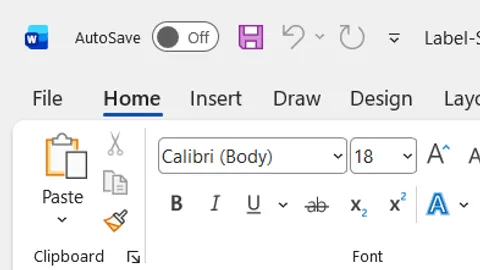
 Microsoft Word Editor
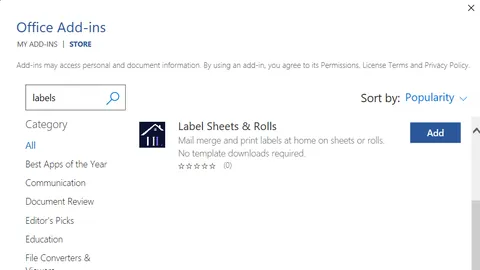
 Microsoft Marketplace
Create a new Word document sized 199.6 x 289.05 millimeters. More info
Microsoft Word Editor
Microsoft Marketplace
Hlabels.com has developed a Microsoft Word add-in called "Label Sheets & Rolls".
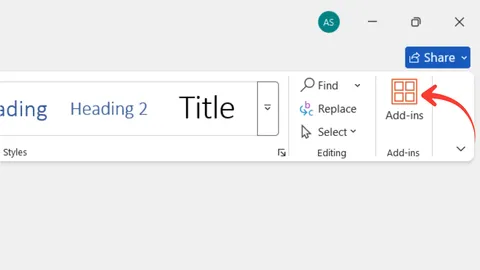
To print your Microsoft Word labels on this label sheet template, you must first install the Hlabels add-in.
You can install it directly from within the Word editor, or through Microsoft AppSource (the official add-in marketplace).
Installing the add-in this way allows you to access it directly from your browser.
For a complete step-by-step guide on how to use this add-in, read more here.
That's it!
The add-in will populate that single label position on the Oddy® ST-A4100 template with the content
from each label, based on your layout settings.
You can either print it directly using your inkjet or laser printer, or download the file for later use.
When printing for the first time, it's very likely you'll encounter some alignment issues.
If the shift is small (1–3 mm), use the Offset and Bleed Area settings
in the Microsoft Word Label Sheets & Rolls Add-in to correct it, regardless of the root cause.
If the shift is larger or inconsistent among labels, check out Hlabels' comprehensive guide. It lists more than twenty possible causes — ranked by their likelihood — and explains how to diagnose and fix each one.
We respect your privacy and want you to have control over your data. Please choose your preferences: