How to print your own labels in Microsoft Word
Microsoft Word already includes built-in tools to create and print labels and perform mail merge,
but many users find the process complex and limited, especially when it comes to supported label brands and template codes, and prone to alignment issues when printing.
This page will guide you through installing and using the
Label Sheets & Rolls add-in,
a simpler and more flexible way to mail merge labels and print labels in Word on virtually any sheet or roll format.
It supports 102 brands, ranging from major worldwide manufacturers like Avery® to many
regional adhesive label makers around the world, with the flexibility to quickly add support for new brands and template codes as needed.
Install the Label Sheets & Rolls Add-in
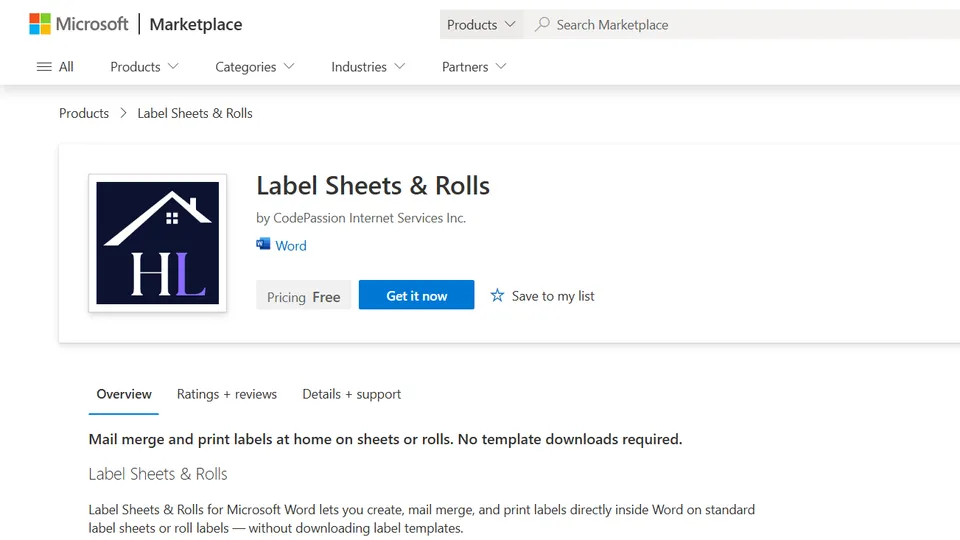
This add-in can be installed either from its
Microsoft Marketplace listing page
or directly from within the Microsoft Word editor.
Install from Microsoft Marketplace listing page
Install from Microsoft Word editor
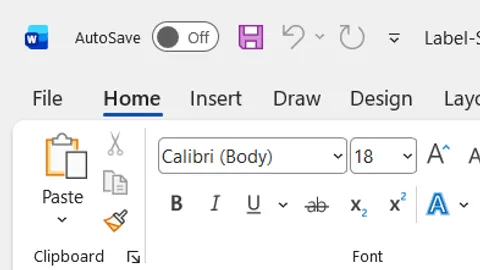
- Start Microsoft Word
- Make sure the Home tab is already selected
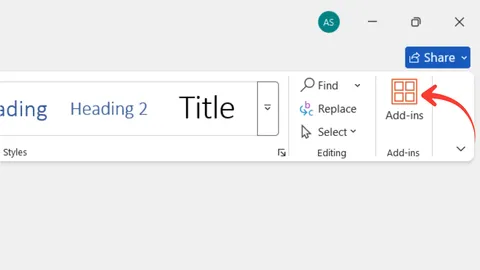
- At the far right of the Home tab, click Add-ins
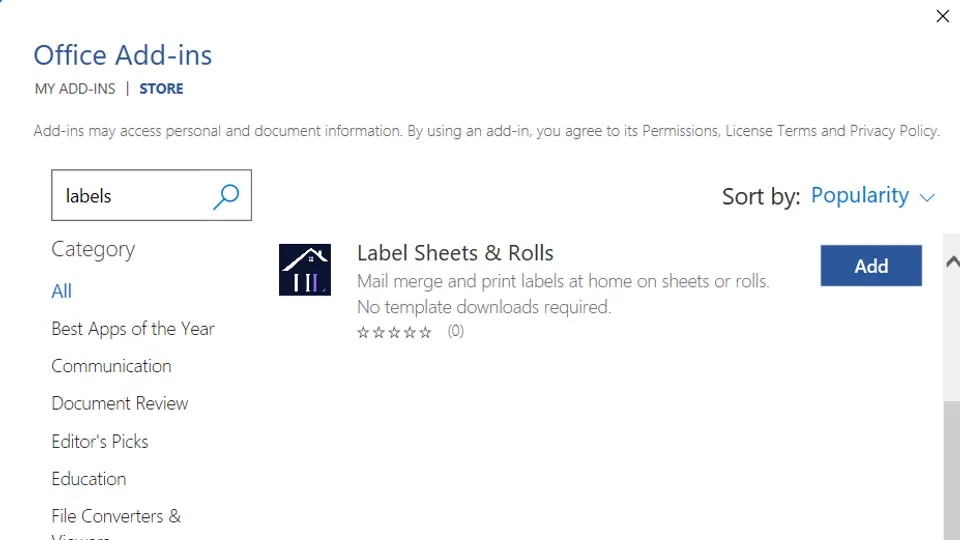
- In the search box that appears, type the keyword
‘labels’
- In the list of search results, you will see the Label
Sheets & Rolls add-in. Click the ‘Add’ button.
Video walkthrough: How to install and start the Label Sheets & Rolls add-in
Start the Label Sheets & Rolls add-in
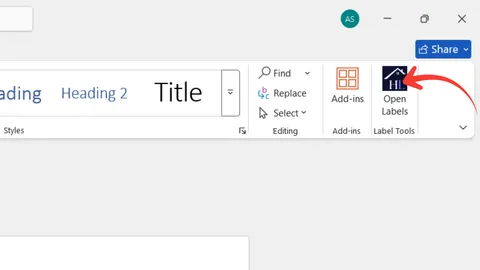
After installation, the Label Sheets & Rolls add-in appears on the ribbon, allowing you to start it easily from there.
- From the Home tab, click the Label Sheets & Rolls add-in.
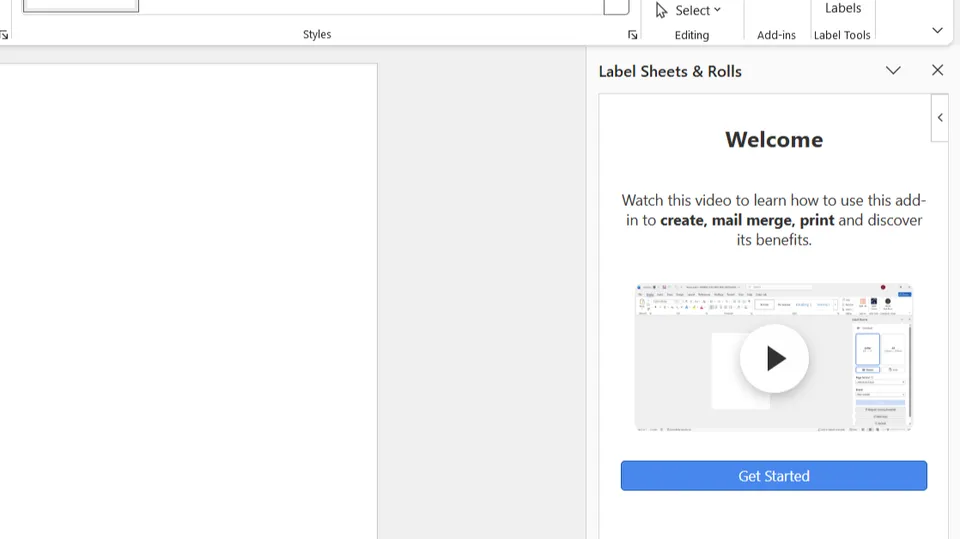
- First-time users can immediately watch a video tutorial explaining how to use the add-in.
- Click the blue ‘Get Started’ button
Set the right Paper size
Based on your regional settings, Microsoft Word uses either Letter (8.5 × 11 inches) or A4 (210 × 297 mm) as the default paper size. While this may seem correct, since standard label sheets and printer paper also use Letter or A4 sizes, it is not the right setting when using the Label Sheets & Rolls add-in.
This is because:
- You design individual labels, not the entire label sheet. This saves you from repetitive copy-paste work and alignment issues. You no longer have to deal with the complexity of the full label sheet; the add-in takes care of the layout for you, so you can focus entirely on designing your label.
- The add-in then places your labels onto a correctly formatted Letter or A4 print layout, so they fit perfectly with the selected brand and template code.
- The final layout is ready to be sent directly to your printer.
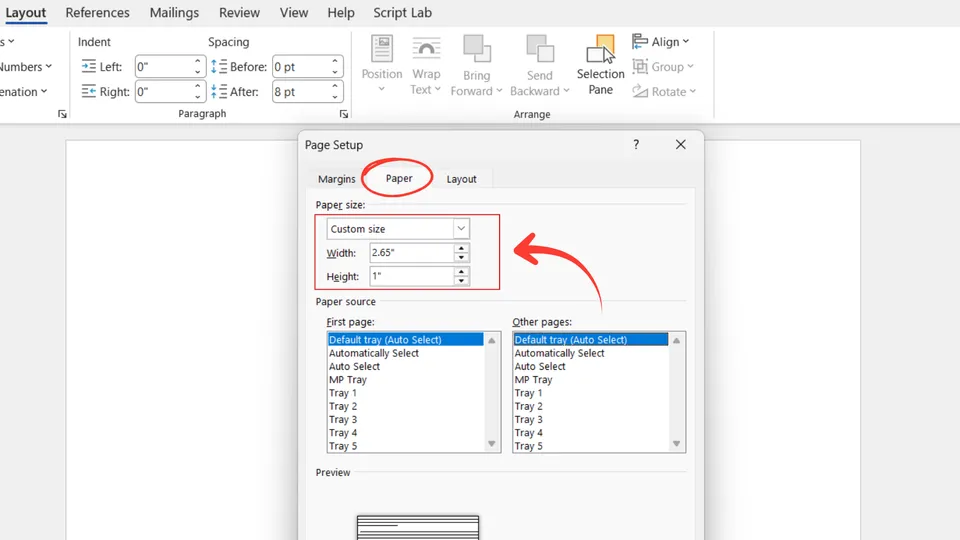
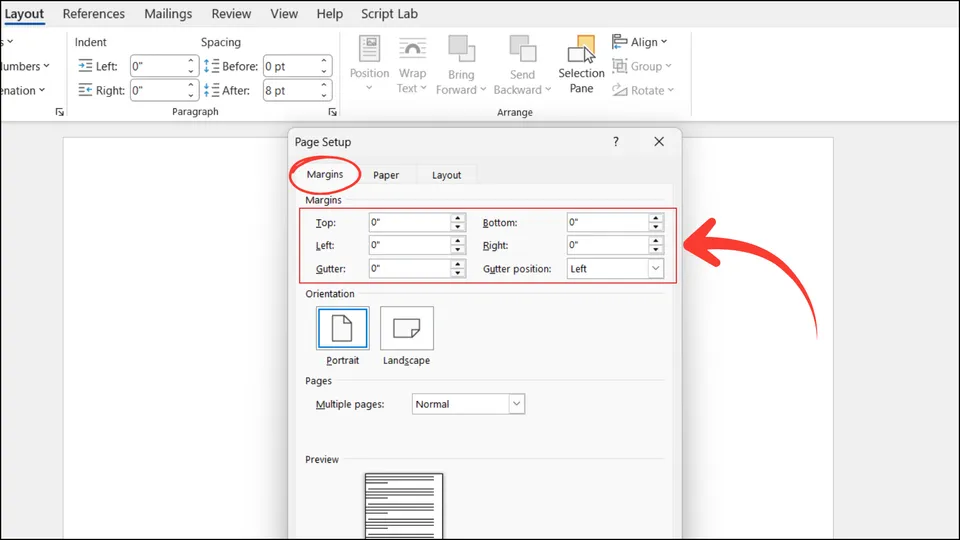
For this reason, you need to set your document’s paper size to match the exact size of a single label. For example, when printing on Avery 5260 label sheets, each label measures 2.625 inches wide by 1 inch high.
Follow these steps in this order:
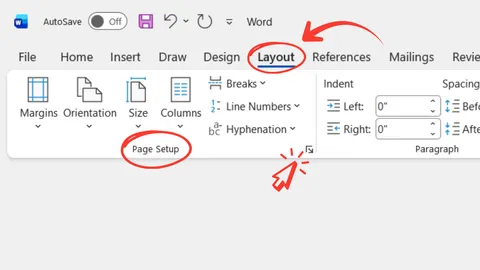
- Go to the Layout tab on the Word ribbon and expand the Page Setup section.
- Set the paper size to the exact dimensions of a single label.
- Set the Top, Bottom, Left, and Right margins. Remember that these apply to the label itself, not the full label sheet. Set them to zero or choose values based on the amount of space you want around the label content.
Video walkthrough: How to Set the Right Paper Size in Microsoft Word for the Label Sheets & Rolls Add-in
Print on standard label sheets
Standard label sheets are pre-manufactured sheets of adhesive labels designed for use with common desktop printers. They come in standard sizes such as A4 or Letter and are produced by well-known manufacturers like Avery® and many other label brands worldwide. Each sheet contains multiple labels in a predefined layout, with perforated or die-cut labels that can be easily peeled off after printing.
Select brand and template code
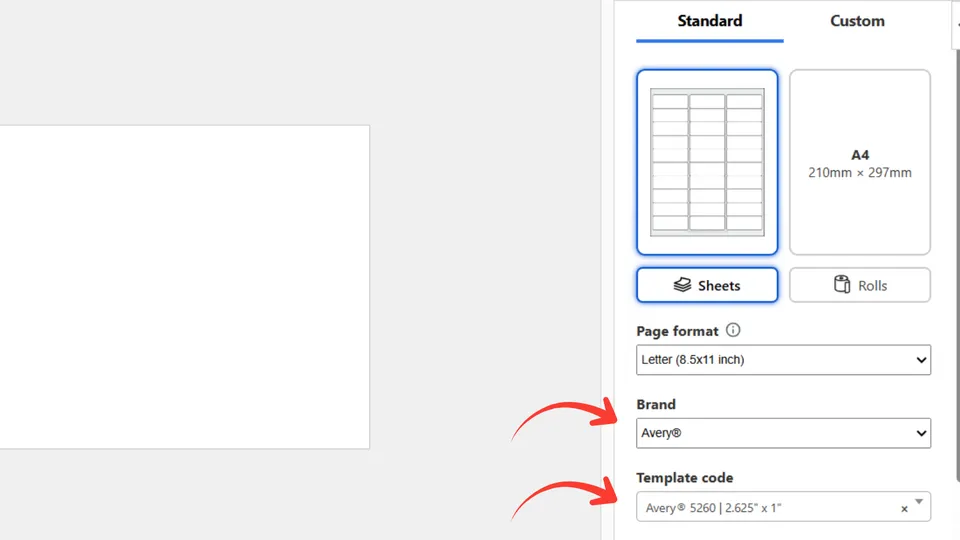
Each label sheet product is identified by its brand and template code. To let the add-in know that you are printing on Avery 5260, make the following selections in the add-in’s user interface:
- Select the Standard tab
- Select the Letter Page format (since Avery 5260 uses Letter size)
- Select the Avery Brand
- Select Avery 5260 as the Template code. Since the list of template codes can be long, you can type to search for it.
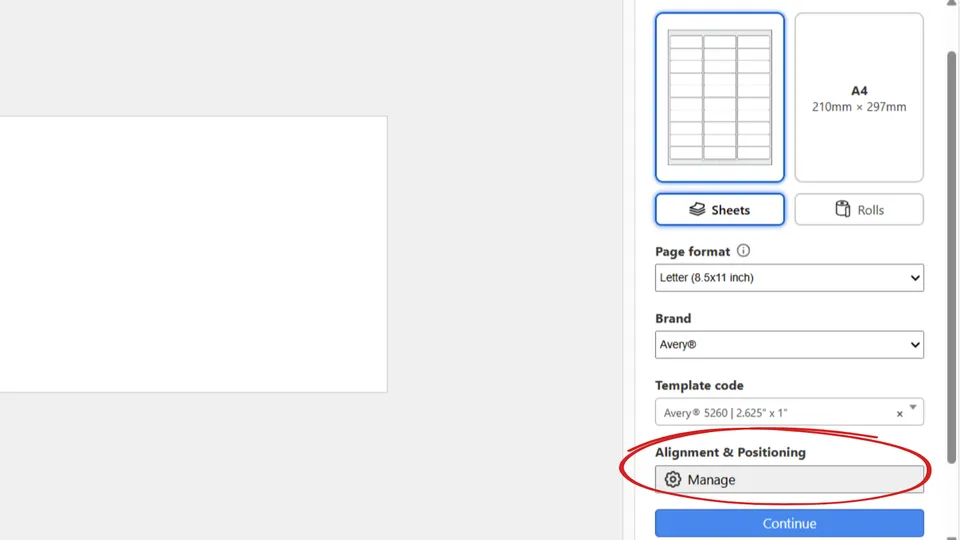
Once you have selected the template code, the add-in will automatically display the option to manage the alignment and positioning of the label sheet printout. This document includes a dedicated section for this, so you can skip it for now.
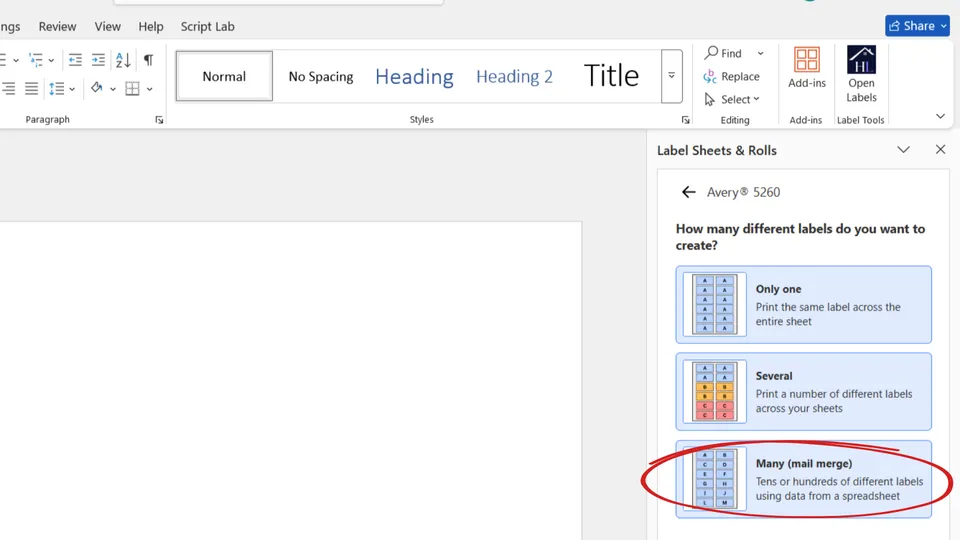
Select the number of different labels to create
A label sheet contains multiple labels, and the way you distribute different labels across the sheet falls into three main categories. Let’s take Avery 5260 as an example, which contains 30 labels:
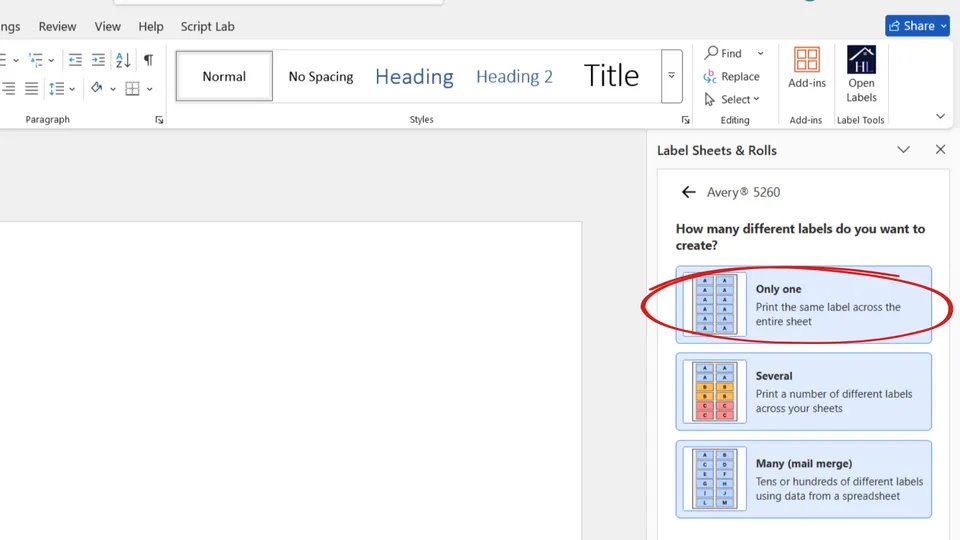
- You create one label and print it across the entire sheet. This results in 30 identical labels.
Jump to this section to learn how to continue with this option.
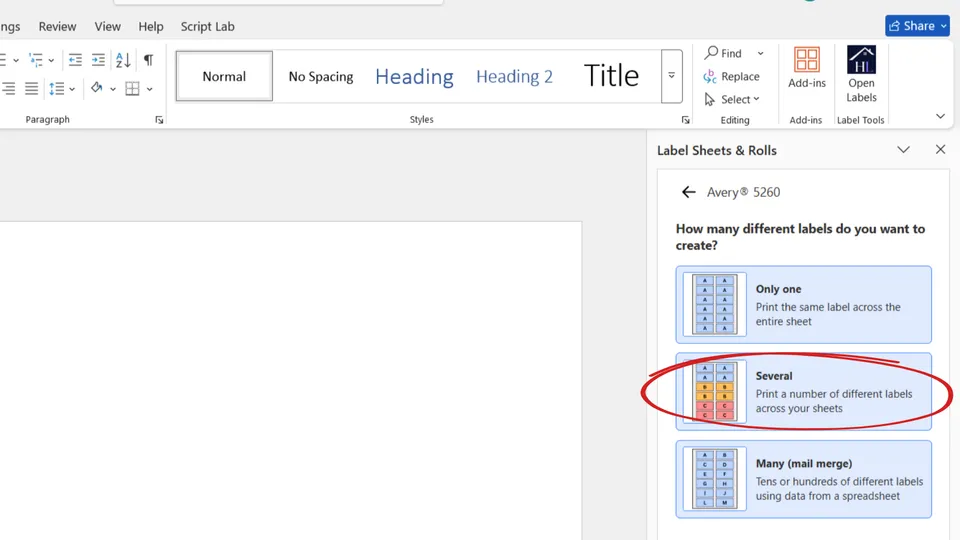
- You create a few different labels and distribute them across the sheet. For example, if you create three different labels, you can print 10 of each on one sheet, or use any other combination.
Jump to this section to learn how to continue with this option.
- You work with a single Microsoft Word page (which has the size of one label),
but the content on each label, or part of it, is different and comes from data in an Excel file.
The add-in automatically reads the data from the file and generates hundreds or even thousands of labels
Jump to this section to learn how to continue with this option.
Create and print one label only
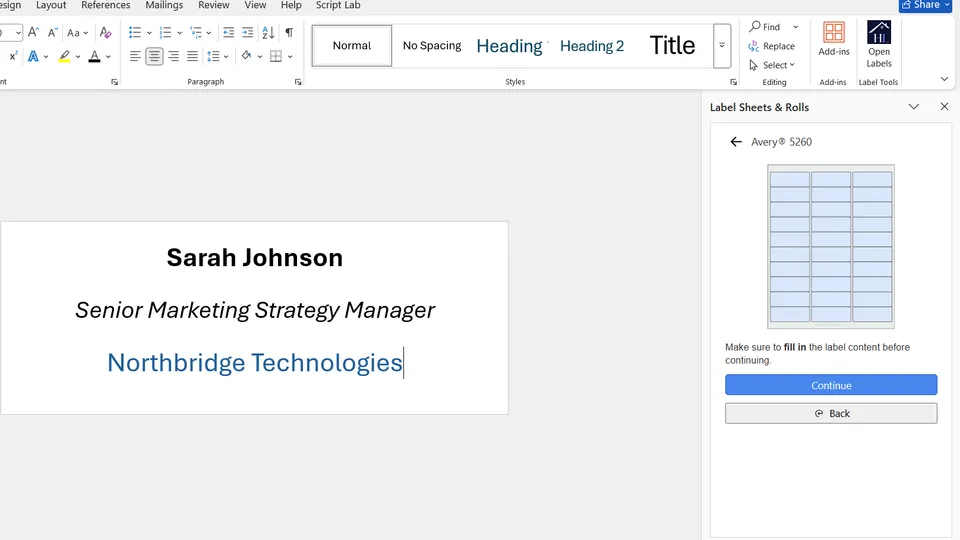
Once you select the ‘Only one’ label option, you can begin designing your label. The document you see represents a single label.
Follow these steps:
- Design the label
Add text, images, and formatting until it is complete.
- Generate printout
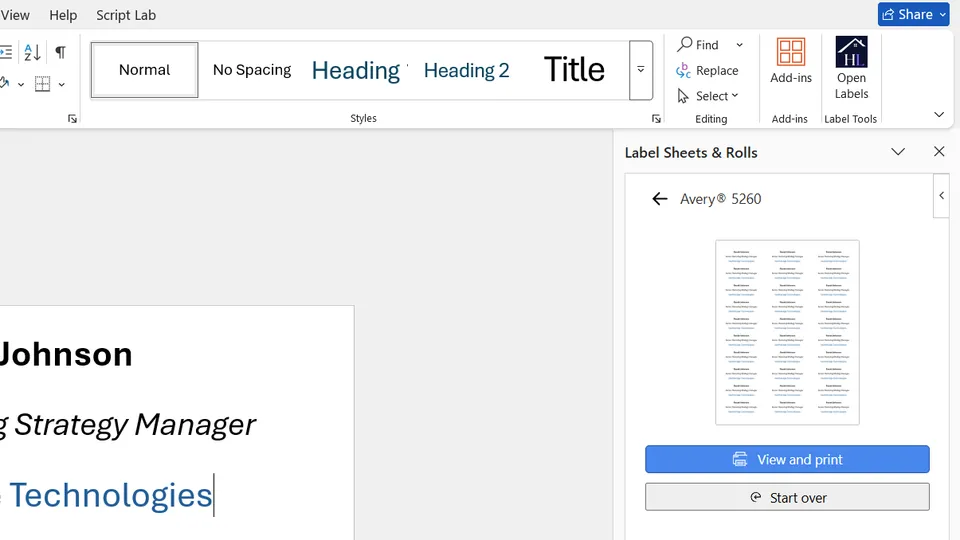
Once you have finished designing your label, click the blue ‘Continue’ button. The add-in will take this label, repeat it across the selected template, and generate a print-ready layout.
Alignment and positioning of the layout are set automatically, but you can adjust them when needed. See the section below for details.
- View and print
Jump to the section below for more information on how to view and print the generated label sheet.
Video walkthrough: Repeat the Same Label Across a Label Sheet Printout in Microsoft Word
Create and print multiple labels
Once you select the ‘A few different labels’ option, you can begin designing your labels. The document you see represents a single label.
Follow these steps:
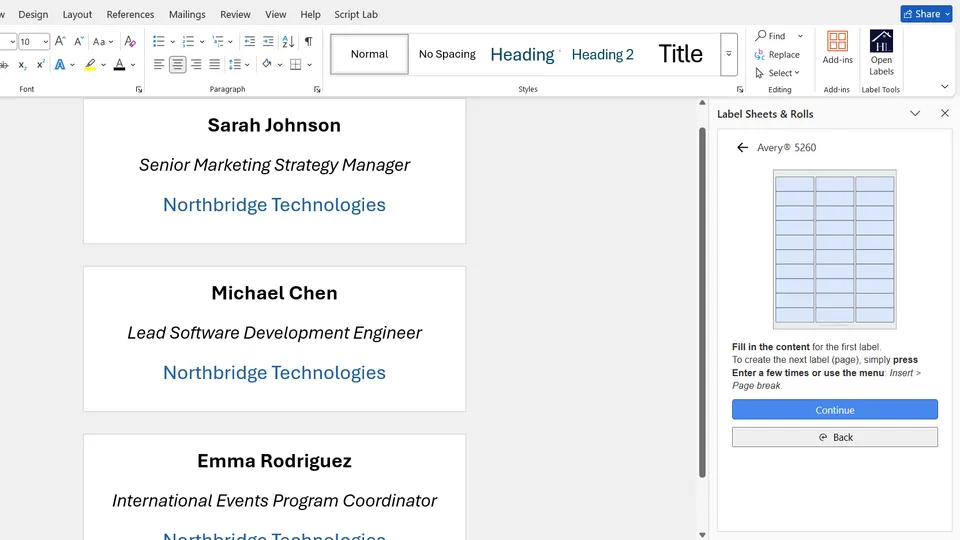
- Design the label
Add text, images, and formatting until it is complete.
- Add and design more labels
To create additional labels, simply add a new document page for each one. You can add as many pages (labels) as needed. Once you have finished designing your labels, click the blue ‘Continue’ button.
- Confirm labels to include
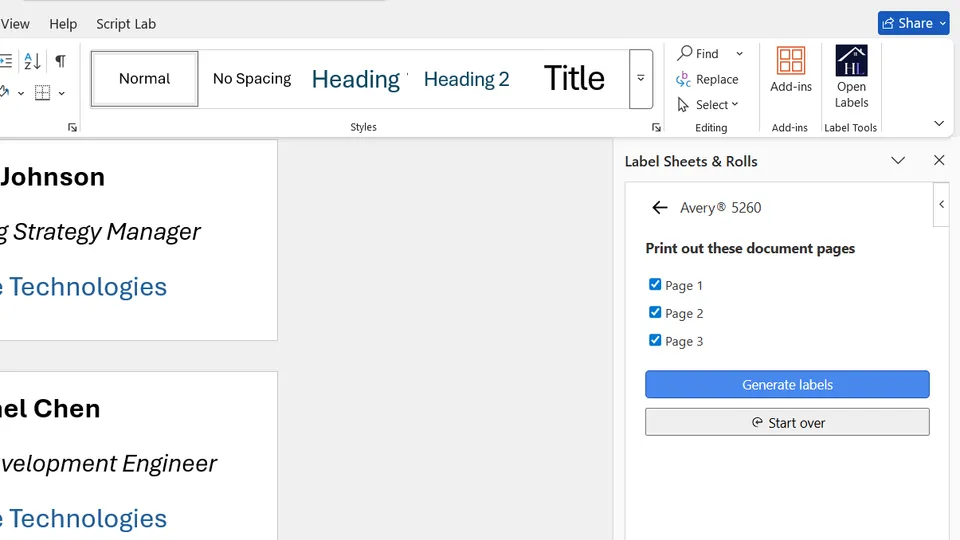
Next, the add-in prompts you to confirm which labels to include in the final printout. Click the blue ‘Generate labels’ button to continue.
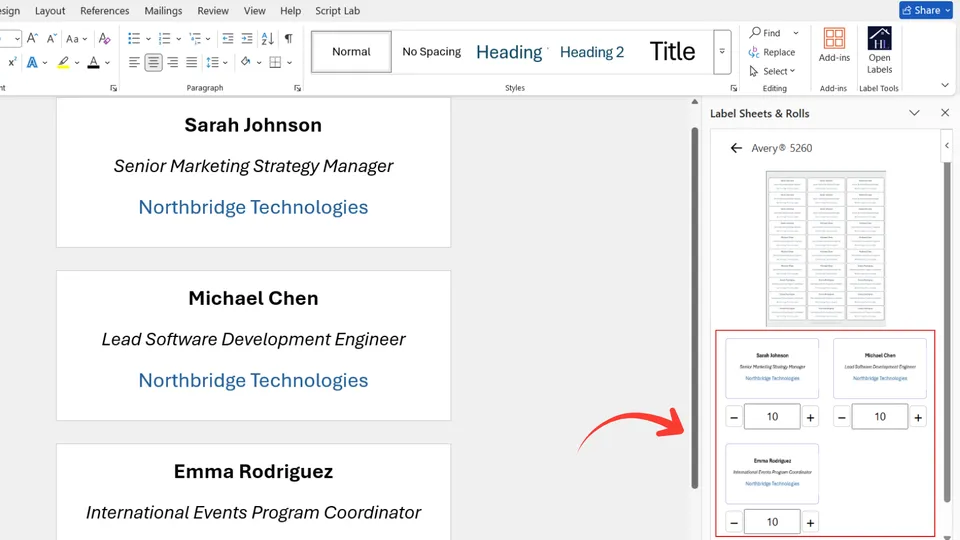
- Adjust label quantities per sheet
The add-in shows a preview of how each label is distributed across the sheet and allows you to adjust the quantities.
- Generate printout
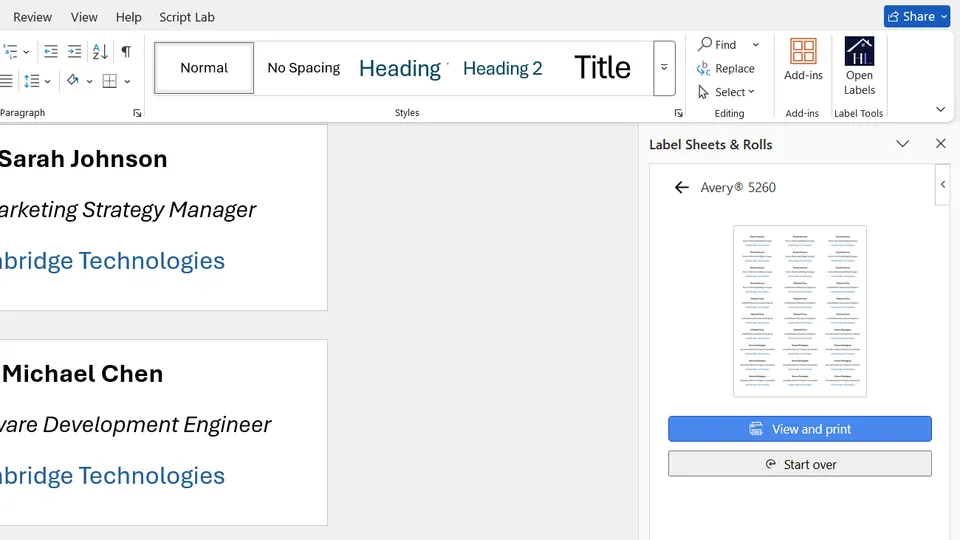
Click the blue ‘Generate printout’ button. The add-in will generate the print-ready layout and display a preview. If the printout spans multiple label sheet pages, only the first two pages are shown in the preview. The remaining pages are indicated below as a number.
Alignment and positioning are set automatically, but you can adjust them if needed. See the section below for details.
- View and print
Jump to the section below for more information on how to view and print the generated label sheets.
Video walkthrough: How to Insert Different Labels on One Label Sheet Printout in Microsoft Word
Create and print labels using data from an Excel file (mail merge)
When you need to print a large number of labels where each one contains different information, designing them manually becomes time-consuming and error-prone. This is common in cases like address labels, product labels with unique SKUs or barcodes, name badges, or shipping labels, where the design remains the same (including layout, images, formatting, and background), but some of the text content changes for each label.
This add-in’s mail merge process solves this by combining a single label with data from an Excel file and automatically generating a different label for each row of data. Instead of creating each label one by one, you design once, specify where each piece of data should appear, and the add-in automatically populates the dynamic content across all labels while simultaneously generating the final label sheet printout.
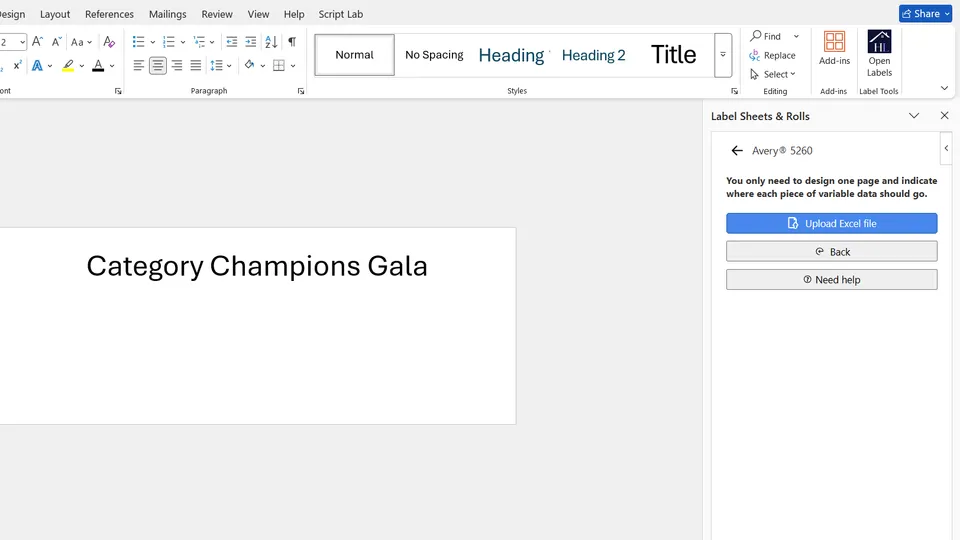
Start by adding the static content, which consists of the elements that will be the same across all labels (you will work on a single document page).
When done, click the blue ‘Upload Excel file’ button.
Follow these steps:
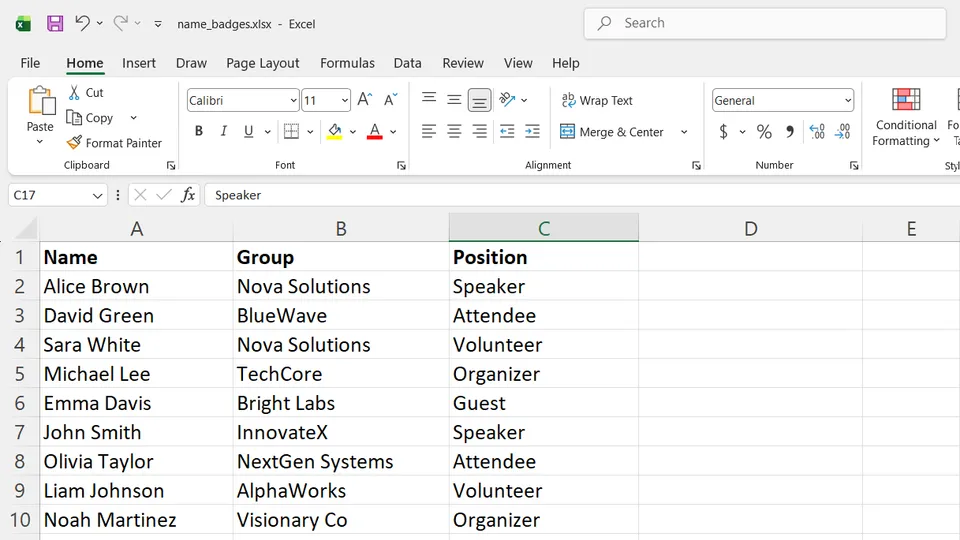
- Make sure the Excel sheet is structured correctly:
-
The first row must contain descriptive column headers that represent the type of data in each column.
-
Each row below must contain the values that will be inserted into a single label. The sheet may also include additional columns, even if they are not used on the labels.
-
Click the blue ‘Upload Excel file’ button, as explained in the section above, and select and open the Excel file from your computer.
-
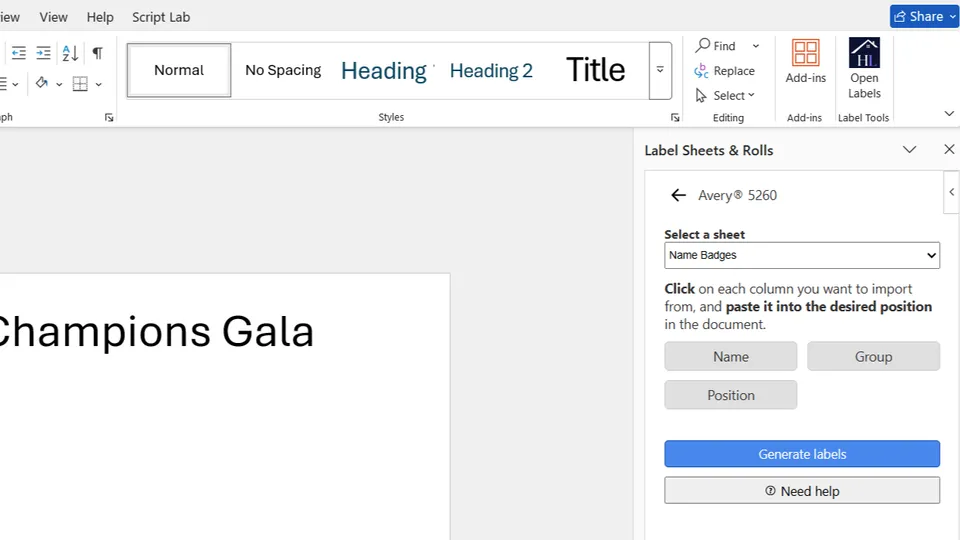
The add-in reads the Excel file and displays the column headers from the first sheet.
Each column name appears as a button. If the file contains multiple sheets, you can switch between them.
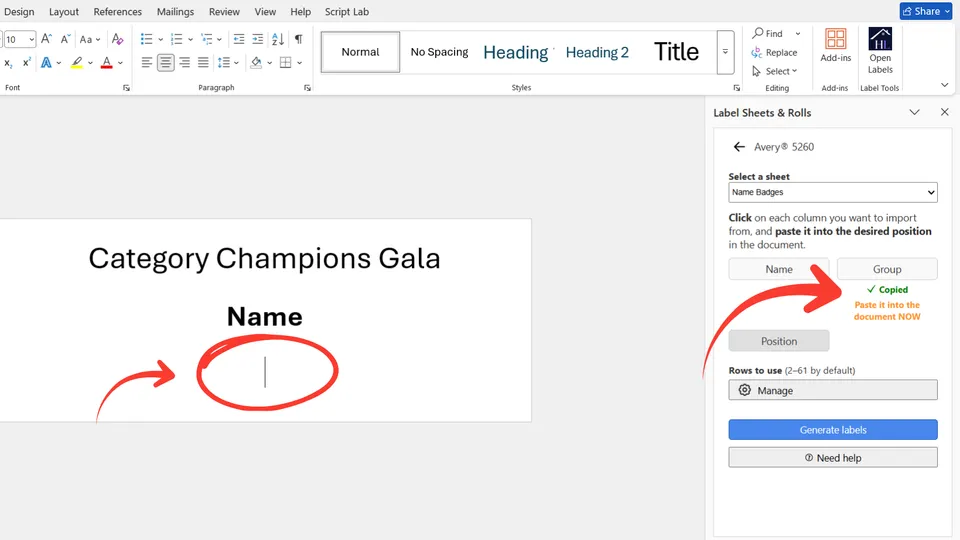
- Assign where each column’s values should appear in the label.
To do this, follow these two simple steps:
-
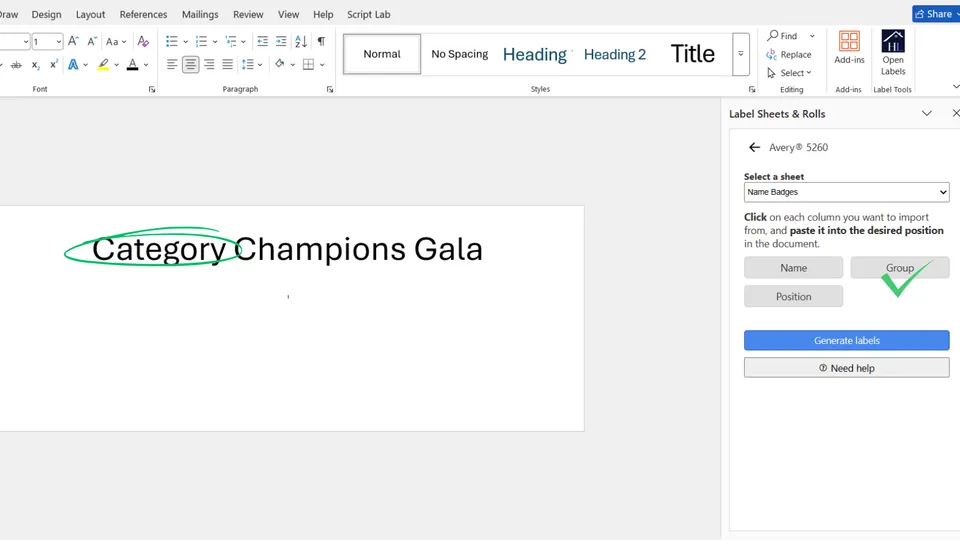
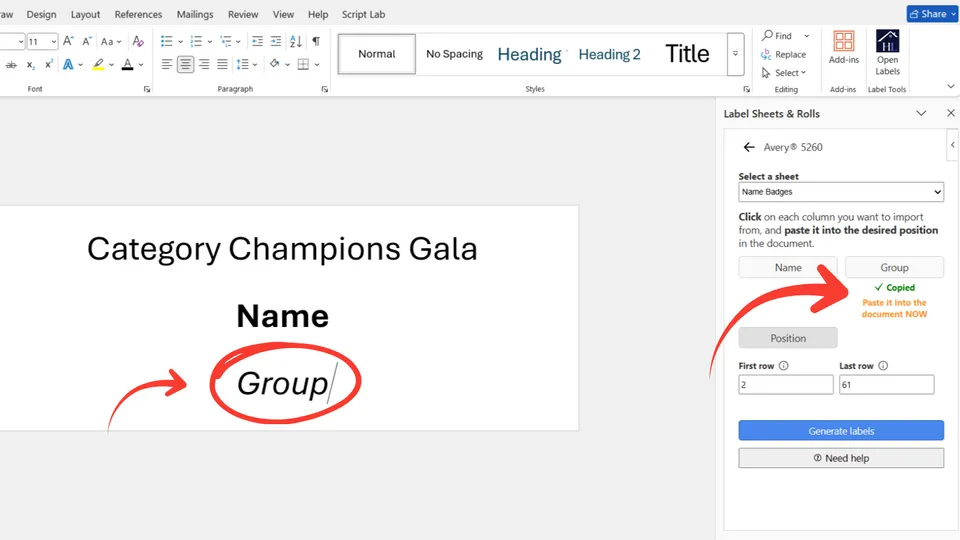
Click the button with the name of the column whose data you want to place in the label. This will copy the column name to the clipboard so you can paste it into the label.
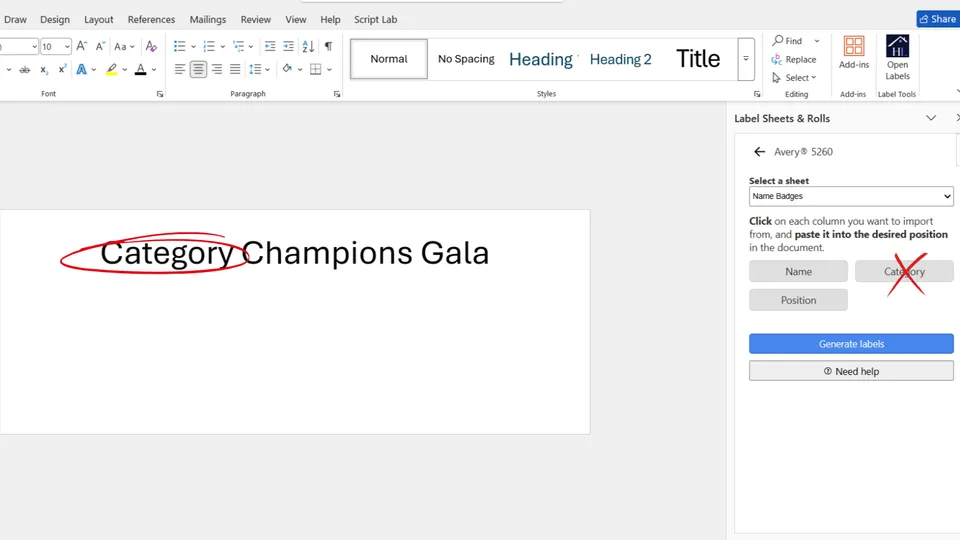
Note: When the label contains static text (text that is the same across all labels), make sure no word in the fixed text exactly matches a column name. If it does, rename that column in the Excel file.
-
Immediately after clicking the button, place the cursor where you want that piece of data to appear and paste it (e.g., Ctrl+V).
Repeat these steps for each column you want to include in the label.
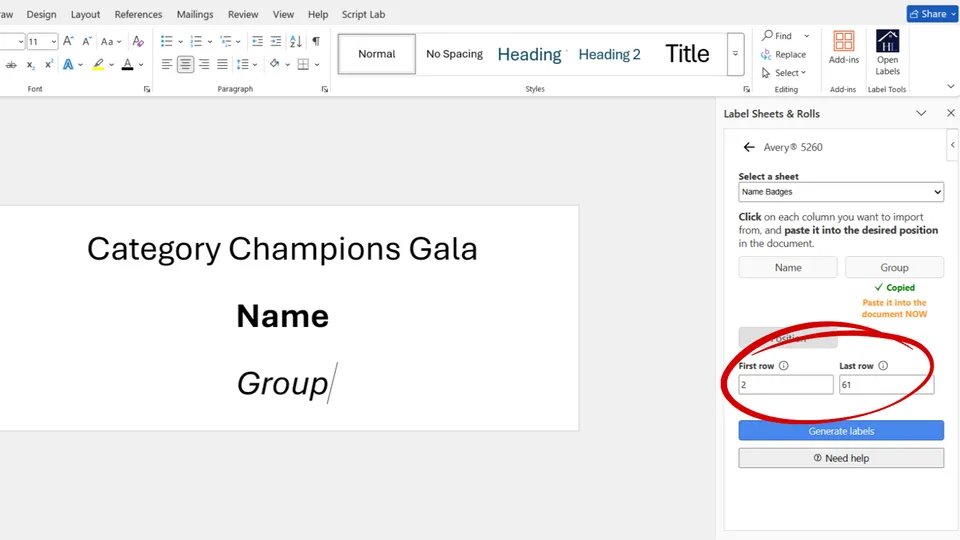
- Select row range
The add-in allows you to generate up to 200 labels at a time. You can select any range of rows to define which data is used: the first row marks where extraction begins, and the last row marks where it ends.
- Generate labels
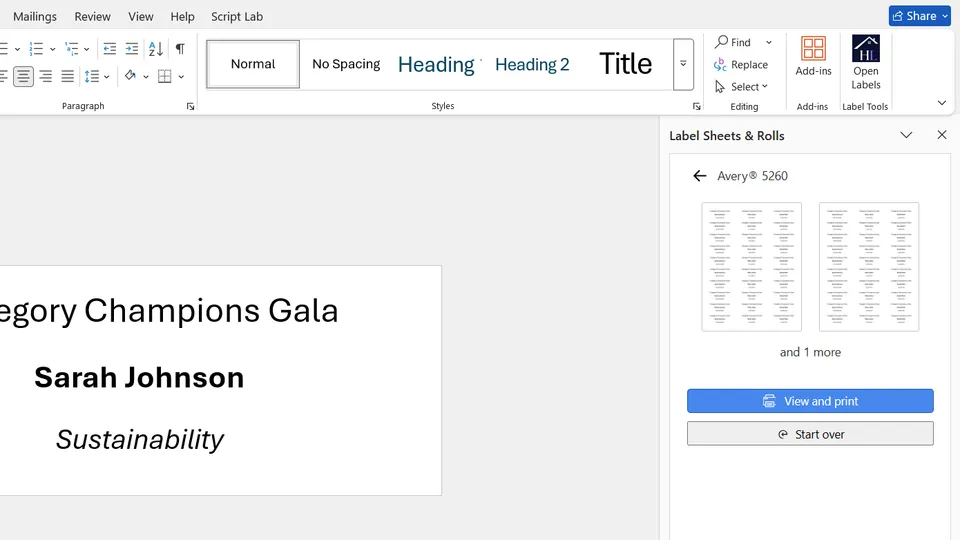
Click the ‘Generate labels’ button. The add-in will read each row, generate the corresponding labels, and arrange them into a print-ready label sheet layout.
If the printout spans multiple label sheet pages, only the first two pages are shown in the preview. The remaining pages are indicated below as a number.
Alignment and positioning are set automatically, but you can adjust them if needed. See the section below for details.
- View and print
Jump to the section below for more information on how to view and print the generated label sheets.
Video walkthrough: How to print and mail merge labels with the Label Sheets & Rolls add-in
View and print
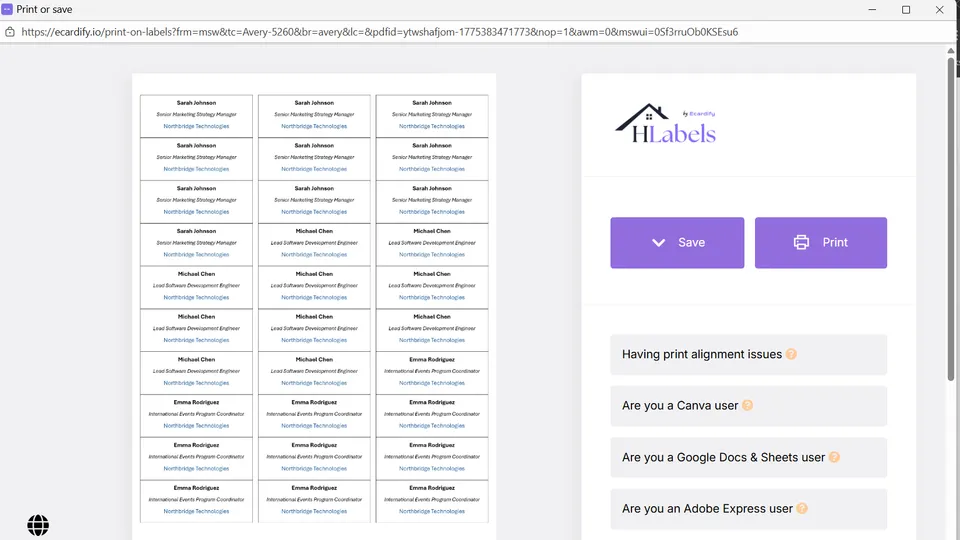
Once the printout has been generated and a preview is displayed, click the blue ‘View and print’ button to continue.
The add-in will open a large popup window showing the label sheet printout. If there is more than one page, only the first page will be displayed. You will also see two buttons: ‘Save’ and ‘Print’.
Save for later printing
Click the ‘Save’ button to download the printout as a PDF file to your computer. You can print it at any time using any PDF reader.
Print right away
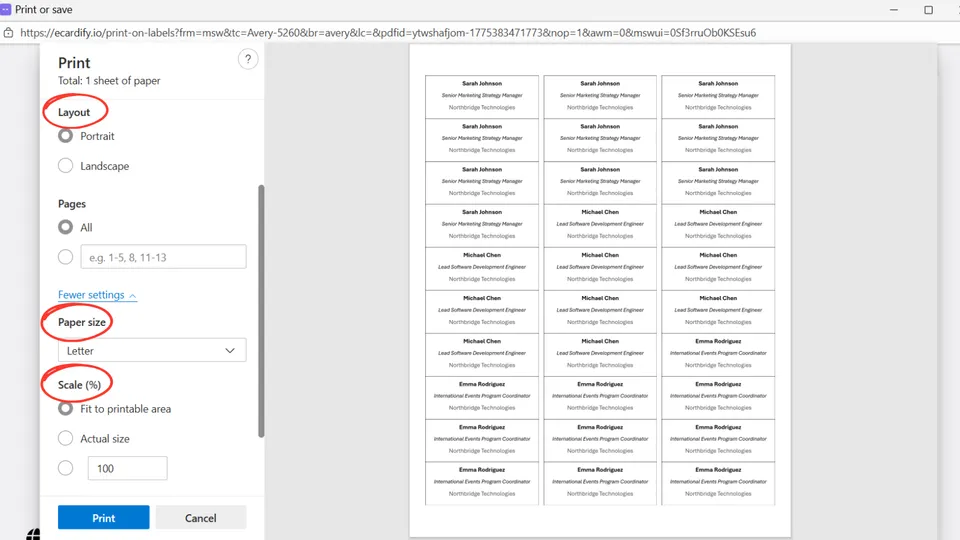
Click the ‘Print’ button to send the printout directly to your inkjet or laser printer. In the dialog that appears, make sure to click the ‘More settings’ link and review the following settings:
- Layout - set to Portrait
- Paper size - set to either Letter or A4
- Scale - set to Actual size
If you encounter print alignment issues, the label printing alignment troubleshooting guide will help you identify the cause and apply a fix. Small misalignments caused by the printer can be compensated through the Alignment & Positioning settings. You can also contact us for assistance.
Print on custom label sheets
Custom label sheets allow you to define your own label layout when standard templates are not suitable or not available. Instead of using predefined sizes, spacing, and margins, you can set the exact label dimensions, gaps, and page margins to match your specific needs.
Use custom label sheets when:
- You are printing on plain adhesive sheets and plan to cut the labels yourself
- You want a more cost-effective alternative to pre-cut (die-cut) label sheets
- You cannot find a matching brand or template code for your label product
- You have measured your labels and want to recreate the layout manually
By defining your own layout, you can print labels on virtually any sheet format, even if it is not currently supported by predefined templates.
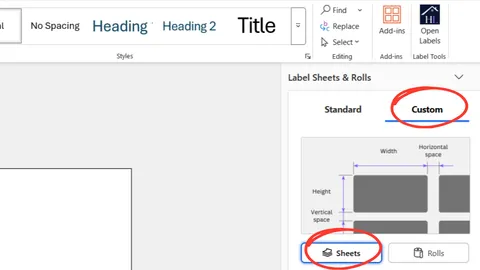
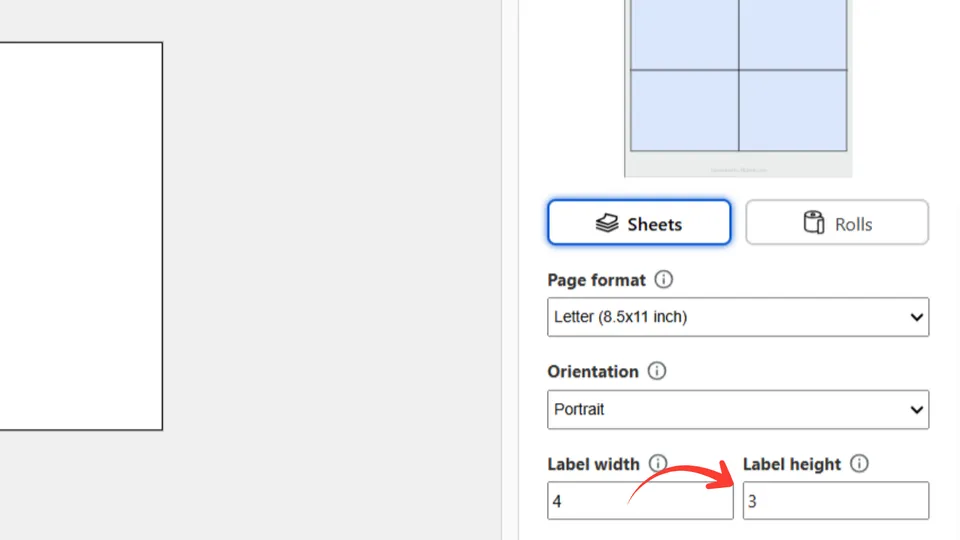
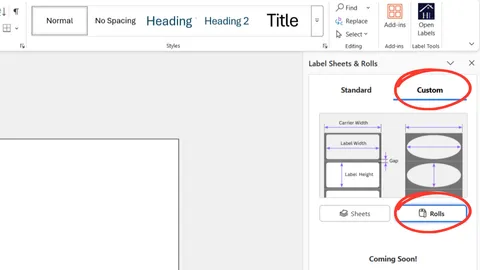
To define a custom label sheet layout and print on it, select the Custom tab at the top of the add-in panel, then click the Sheets button.
Enter the following information:
- Page format
The add-in supports the two standard paper sizes used worldwide: Letter (8.5 × 11 inches) and A4 (210 × 297 mm). Select the one you use.
- Orientation
If you want your label images to be inserted vertically (i.e., rotated -90 degrees) into each label, just set this field to "Landscape", and the add-in will automatically rotate them and generate the label sheet printout accordingly.
This setting works the same way for both custom and standard label layouts.
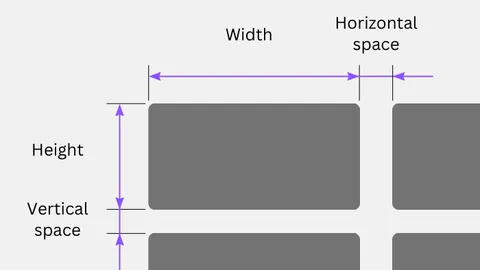
- Label width
This is the width of a single label.
- Label height
This is the height of a single label.
Ensure the label’s width-to-height ratio matches the document’s paper size defined in the Set the right paper size section. Otherwise, unwanted empty space may appear around the printed labels.
For this reason, based on the label width (which you should enter first), the add-in automatically suggests a label height value for you.
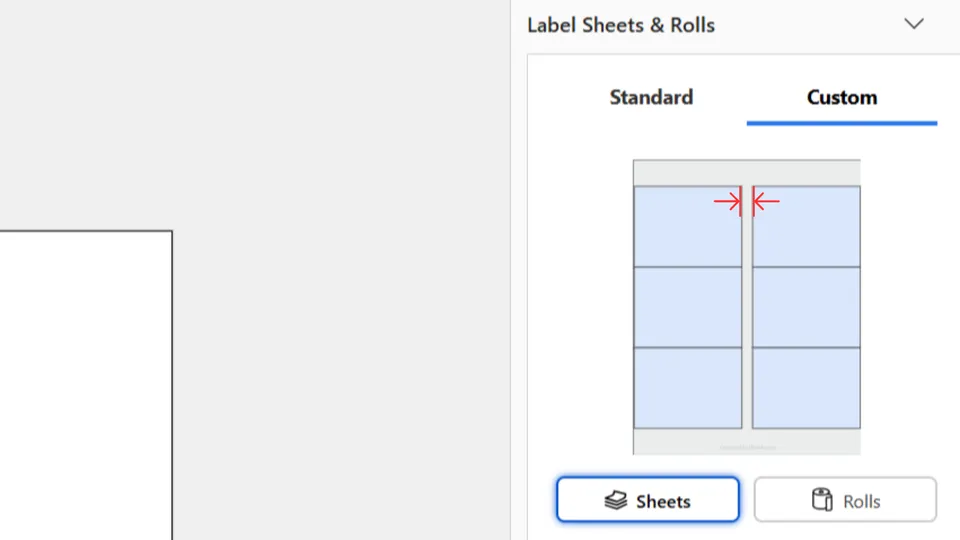
- Horizontal space
This setting controls the horizontal space between labels.
If you’re cutting labels yourself, leave this value as zero. Otherwise, if you’re using an existing label sheet layout and have the sheets on hand, measure and enter this distance as accurately as possible. Even small inaccuracies can add up across the sheet and cause noticeable misalignment in the printout.
For your convenience, changes to this value are instantly reflected in the layout preview at the top of the add-in panel.
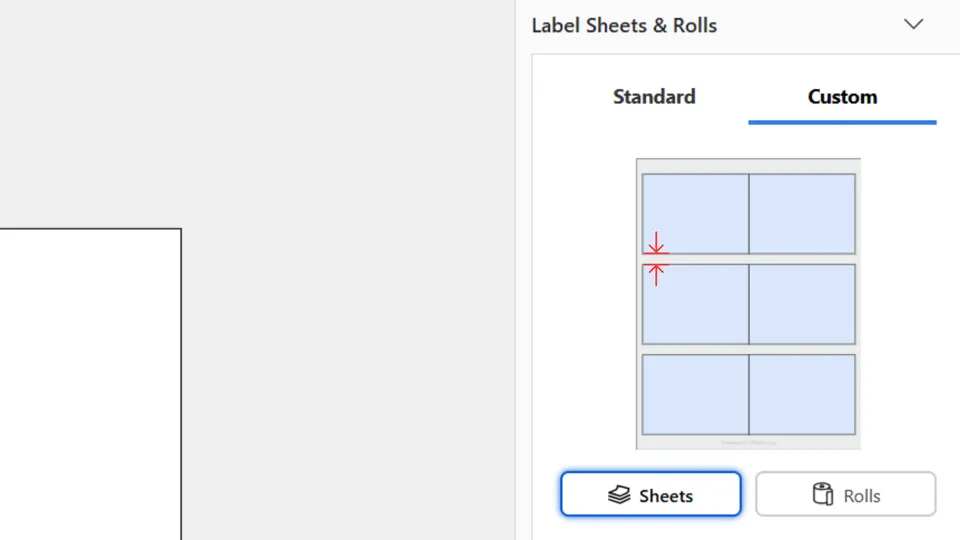
- Vertical space
This setting controls the vertical space between labels.
If you’re cutting labels yourself, leave this value as zero. Otherwise, if you’re using an existing label sheet layout and have the sheets on hand, measure and enter this distance as accurately as possible. Even small inaccuracies can add up across the sheet and cause noticeable misalignment in the printout.
For your convenience, changes to this value are instantly reflected in the layout preview at the top of the add-in panel.
Once all values are set and you have visually confirmed the layout in the preview, click the blue ‘Continue’ button.
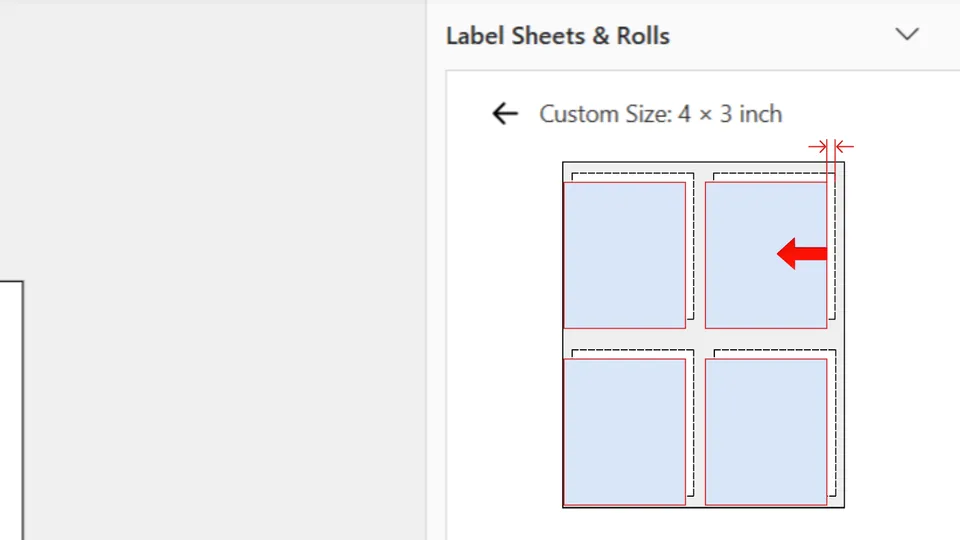
The next dialog in the add-in provides several settings that affect how labels are placed, aligned, and displayed on the sheet:
- Horizontal offset
When the paper sheet sits a little to the left or right in the printer tray, labels can print off-center. This setting lets you apply a horizontal offset of 1 to 3 mm to correct the alignment.
This setting works the same way for both custom and standard label layouts.
- Vertical offset
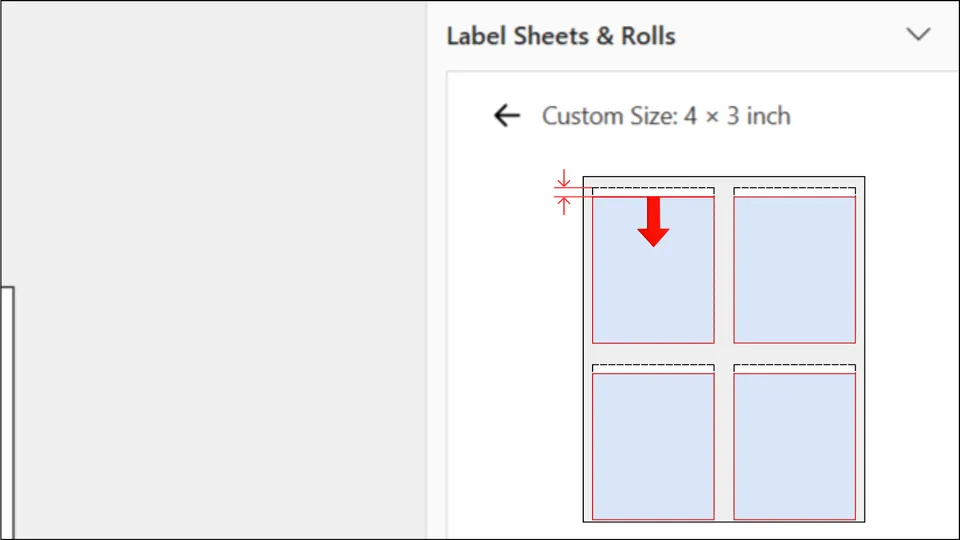
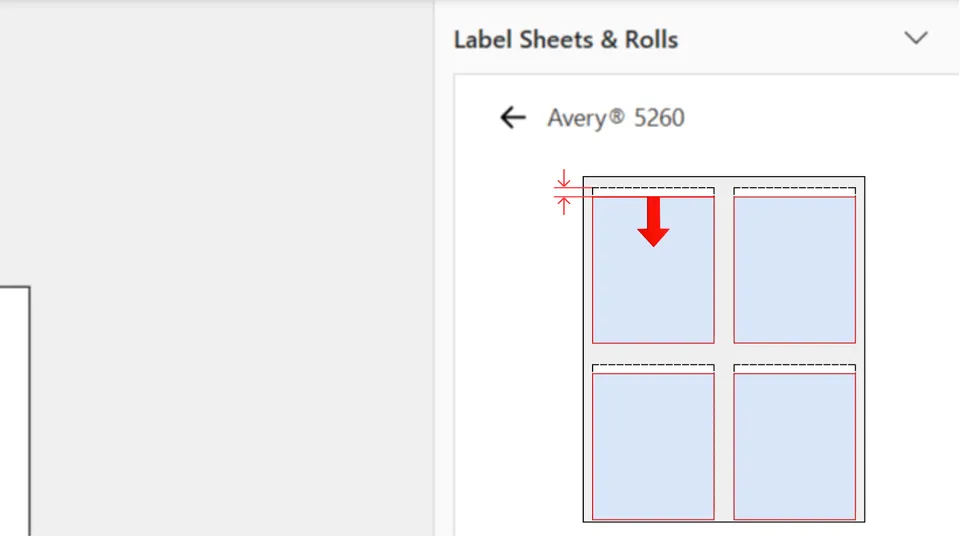
Inkjet and laser printers are not always 100% precise when feeding paper vertically, which can result in labels being printed slightly higher or lower than their intended position on the sheet. This setting allows you to apply a vertical offset of 1 to 3 mm to compensate for misalignment caused by imperfect vertical feed.
This setting works the same way for both custom and standard label layouts.
- Bleed area
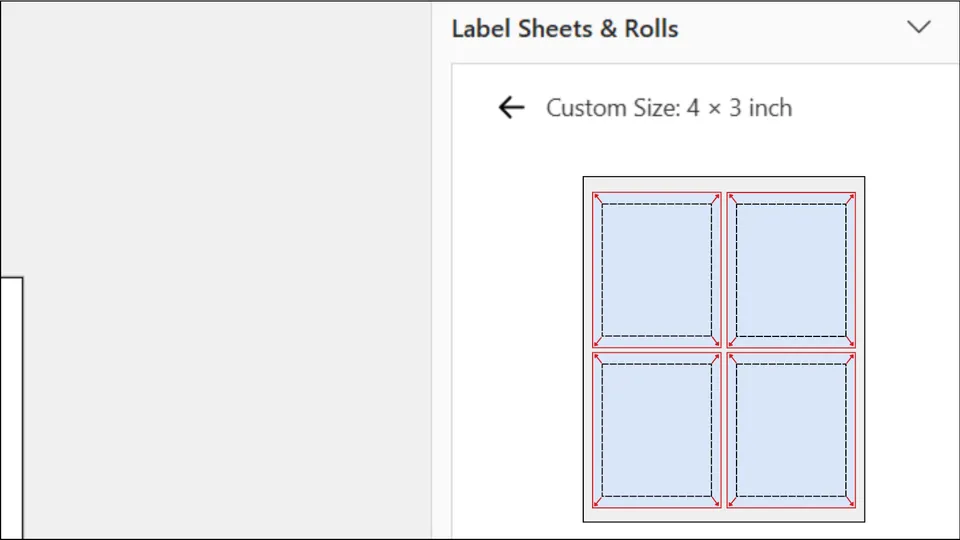
When your label background isn't white, slight misalignments during printing can cause a thin white edge to appear along one or more sides. A simple and effective way to avoid this is to print the label slightly larger than the label area, so the background extends beyond the label's actual edge. This method is called applying a bleed. If you notice white edges, select a bleed area between 1% and 5%, depending on how much coverage you need.
This setting works the same way for both custom and standard label layouts.
- Cutting marker
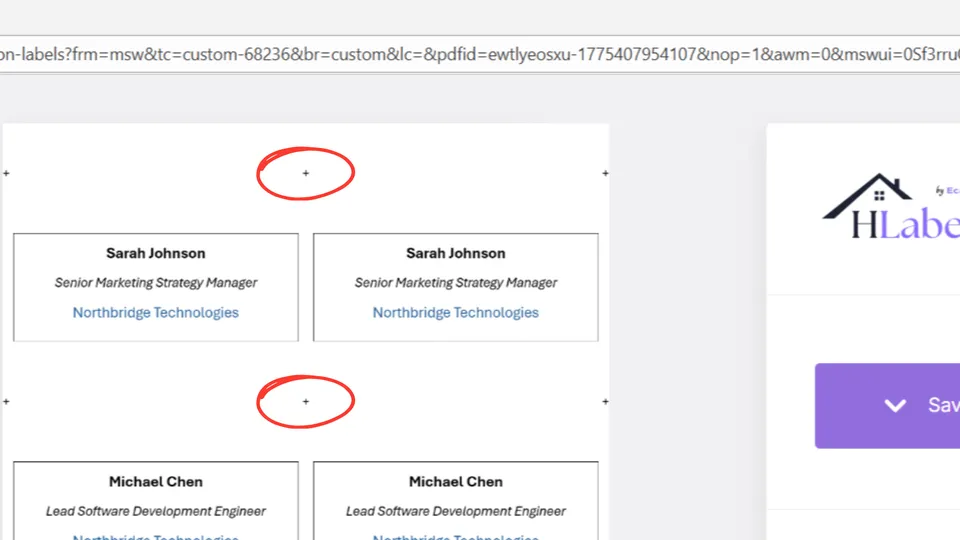
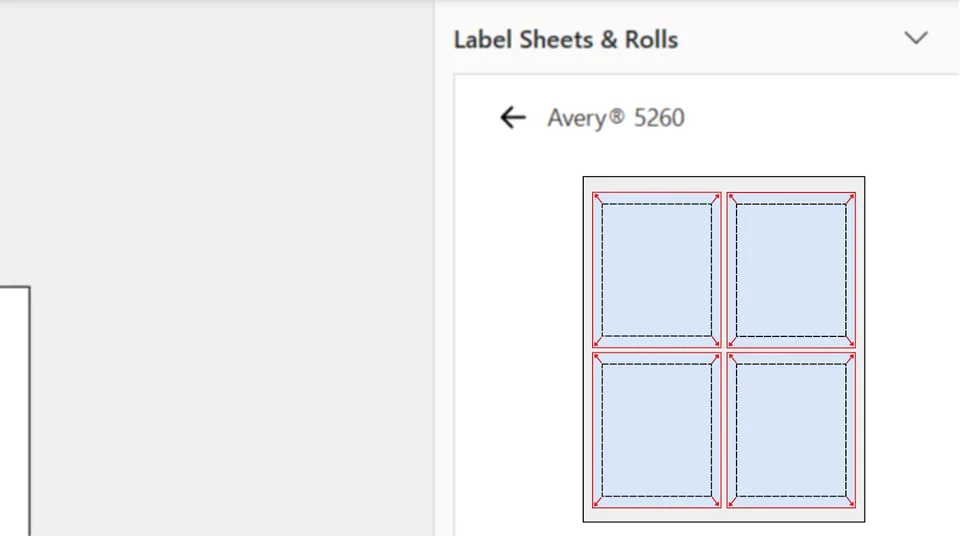
If the labels have no spaces between them and you intend to print them on plain paper and cut them out yourself, cross-shaped guides will appear at the corners of each label to help make cutting easier and more precise.
- Labels to skip
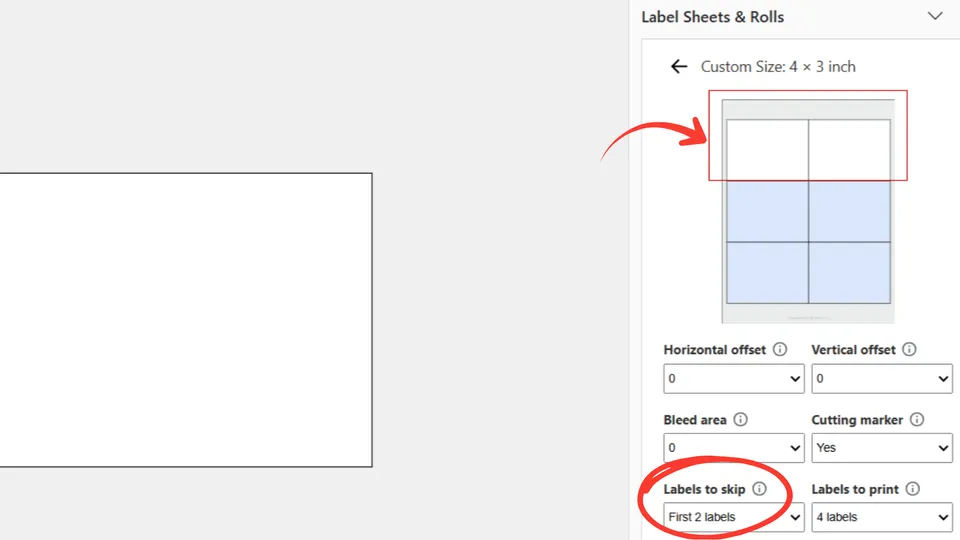
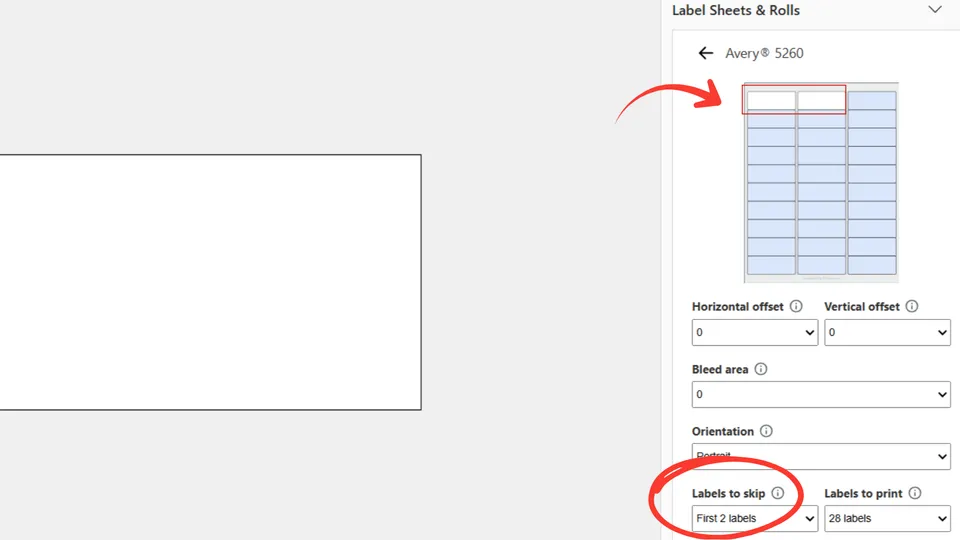
This setting is useful if you are reusing a label sheet where you have already printed and peeled off a number of labels, and now want to print on the remaining ones. Set this field to the number of labels that have already been used and need to be skipped in this printout.
This setting works the same way for both custom and standard label layouts.
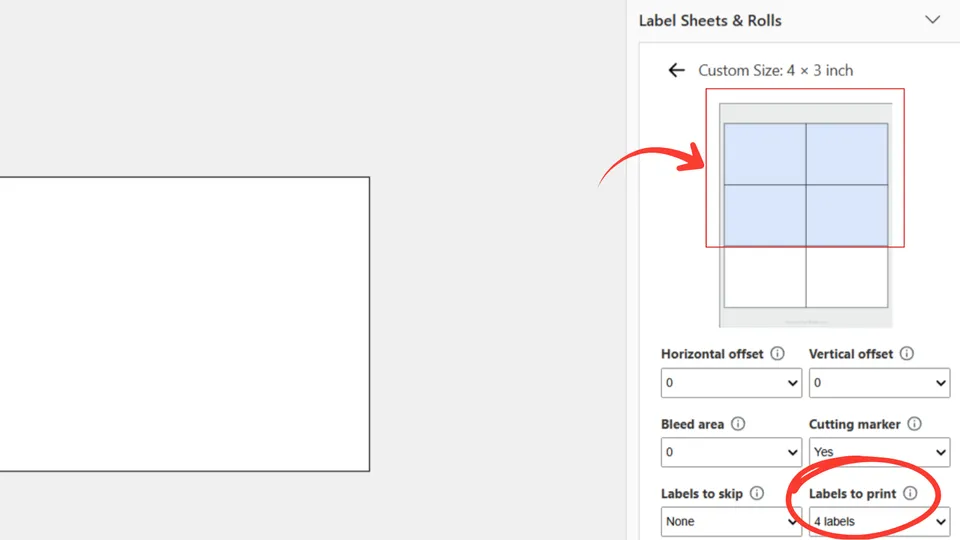
- Labels to print
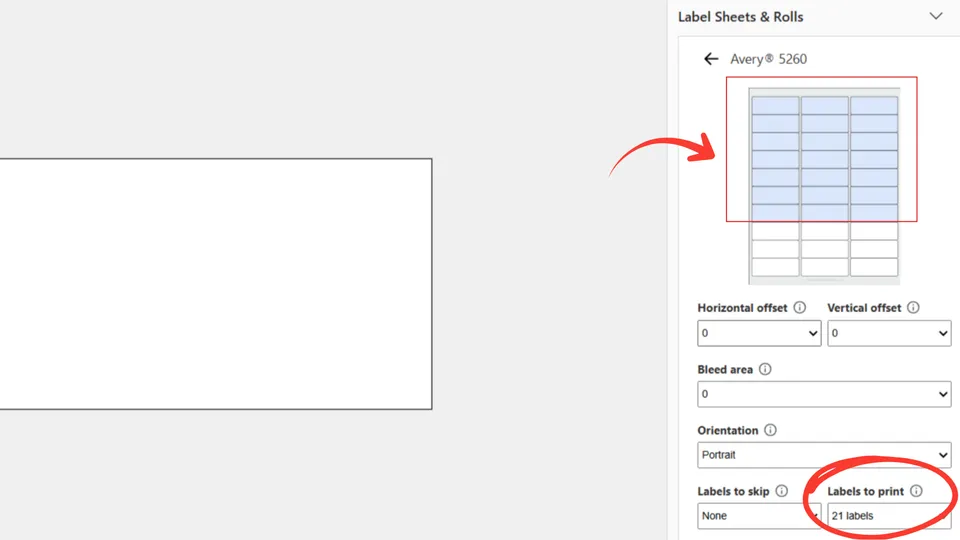
The number of labels that will be printed depends on the value you set in this field, as well as the number of label versions you have created. If the value you set here is smaller than the number of versions, it will be ignored, and the printout will include at least one copy of each label version. If the first label sheet runs out of available labels, the remaining versions will be printed on additional sheets (second, third, and so on).
This setting works the same way for both custom and standard label layouts.
For your convenience, changes to any of these settings are instantly reflected in the layout preview at the top of the add-in panel.
Once all values are set and you have visually confirmed the layout in the preview, click the blue ‘Continue’ button.
The remaining steps are the same as for Standard Label Sheets. See the Select the number of different labels to create section and follow the instructions there.
Video walkthrough: How to Create a Custom Label Template in Microsoft Word
Print on custom label rolls
Custom label rolls allow you to print on any roll format, even though predefined roll templates are not currently included in the system. Unlike label sheets, rolls are simpler to define because they require fewer measurements, typically just the label size, gap, and roll width, making setup quick and straightforward.
This means you can easily configure a custom roll to match standard roll products from any manufacturer, without needing a predefined template.
In practice, using custom label rolls is nearly as simple as selecting a standard template, while giving you the flexibility to work with virtually any roll label format.
To define a custom roll layout and print on it, select the Custom tab at the top of the add-in panel, then click the Rolls button.
At the moment, you will see a ‘Coming soon’ message because this feature has not been released yet. This document will be updated once it goes live.
Manage alignment & positioning
As noted in the Print on Custom Label Sheets section, the add-in provides several settings that affect how labels are placed, aligned, and displayed on the sheet.
When printing on Standard Label Sheets, these settings are grouped in a dedicated dialog, which you can access by clicking the Manage button.
The Alignment & Positioning dialog contains the following fields:
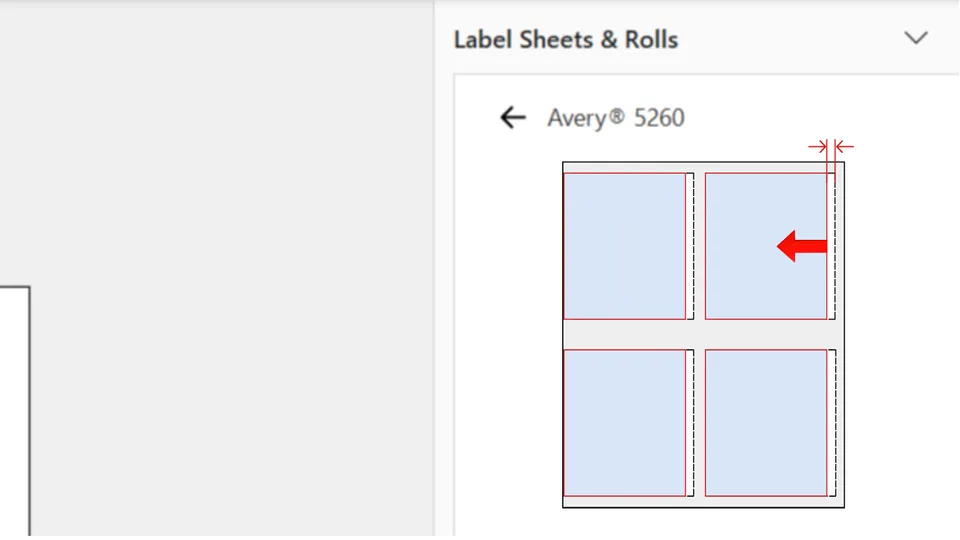
- Horizontal offset
When the paper sheet sits a little to the left or right in the printer tray, labels can print off-center. This setting lets you apply a horizontal offset of 1 to 3 mm to correct the alignment.
This setting works the same way for both standard and custom label layouts.
- Vertical offset
Inkjet and laser printers are not always 100% precise when feeding paper vertically, which can result in labels being printed slightly higher or lower than their intended position on the sheet. This setting allows you to apply a vertical offset of 1 to 3 mm to compensate for misalignment caused by imperfect vertical feed.
This setting works the same way for both standard and custom label layouts.
- Bleed area
When your label background isn't white, slight misalignments during printing can cause a thin white edge to appear along one or more sides. A simple and effective way to avoid this is to print the label slightly larger than the label area, so the background extends beyond the label's actual edge. This method is called applying a bleed. If you notice white edges, select a bleed area between 1% and 5%, depending on how much coverage you need.
This setting works the same way for both standard and custom label layouts.
- Orientation
If you want your label images to be inserted vertically (i.e., rotated -90 degrees) into each label, just set this field to "Landscape", and the add-in will automatically rotate them and generate the label sheet printout accordingly.
This setting works the same way for both standard and custom label layouts.
- Labels to skip
This setting is useful if you are reusing a label sheet where you have already printed and peeled off a number of labels, and now want to print on the remaining ones. Set this field to the number of labels that have already been used and need to be skipped in this printout.
This setting works the same way for both standard and custom label layouts.
- Labels to print
The number of labels that will be printed depends on the value you set in this field, as well as the number of label versions you have created. If the value you set here is smaller than the number of versions, it will be ignored, and the printout will include at least one copy of each label version. If the first label sheet runs out of available labels, the remaining versions will be printed on additional sheets (second, third, and so on).
This setting works the same way for both standard and custom label layouts.
When you print on a Standard Label Sheet and adjust any of these settings, the add-in remembers them and pre-fills their values the next time you use the same label sheet product.
Video walkthrough: How to Manage the Layout of a Label Sheet Printout with the Microsoft Word Label Sheets & Rolls Add-in
Frequently asked questions about printing labels in Microsoft Word
Do I have to build the full label sheet layout inside Microsoft Word?
No. With the Label Sheets & Rolls add-in, the Word document is used to design individual labels rather than the entire sheet. After you choose the label sheet template, the add-in repeats or distributes those labels into the correct positions and generates the print-ready sheet for you.
Why does my Word document need to be the size of one label?
The add-in treats each Word page as an individual label design. Setting the Word paper size to the physical width and height of one label lets you design at the correct dimensions while the add-in handles the entire Letter or A4 sheet layout automatically. The paper-size video walkthrough shows this setup step by step.
Can I print Avery® and other label-sheet brands from this Microsoft Word add-in?
Yes, you can print on Avery® and 101 other label sheet brands from around the world.
Select the brand of the label sheets you are printing on, such as Avery®,
and then select the template code for those sheets.
The add-in uses that product layout to position the labels on the final sheet automatically.
How can I print the same label content across every position on a sheet?
Choose the Only one option, design the label on the current Word document page, and continue. The add-in duplicates that design across the available positions in the selected label sheet template and creates the final printout automatically.
You can also watch the repeat-one-label video.
How can I print several different labels on the same label sheet?
Create each label on a separate Word document page and choose the Several option. Before generating the printout, you can decide how many copies of each label should be placed on the sheet.
For a visual walkthrough, see the insert-several-labels video.
Can this add-in create labels in Microsoft Word from an Excel file using mail merge?
Yes. After setting the correct Paper size and the label sheet brand and code, select the mail merge option, upload your Excel file, and place the Excel column names where the changing information should appear. You only need one page in the Word document because the add-in reuses the same label design with the different Excel data, then arranges the generated labels into the final label sheet layout.
This is useful for address labels, product labels, name badges, SKUs, barcodes, and other labels where part of the content changes from one label to the next.
How should the data be organized in my Excel file for a label mail merge in Word?
Organize your Excel file like this:
-
Use the first row for column headers, such as Name, Address, Product, or Price.
-
Use one row for each label you want to create. For example, if you want to create 50 different labels, your Excel file would normally contain 50 rows of label data below the header row.
-
Place each value under the correct column header. For example, names should go in the Name column and addresses in the Address column.
-
Your Excel sheet can contain additional columns even if you do not use all of them on your labels.
The add-in uses the column headers as merge fields, allowing you to choose which Excel data appears in your Word label design. You can select a specific range of rows and generate up to 200 labels at a time, so larger lists can be processed in separate ranges. The mail merge video walkthrough demonstrates the complete process.
Does the Hlabels add-in replace Word's built-in Labels or Mail Merge tools?
No. Word's built-in label and Mail merge features remain available. The Hlabels add-in provides an alternative workflow in which you design individual labels in Word and let the add-in automatically generate the print-ready label sheet layout.
Can I save the finished label sheet printout as a PDF?
Yes. After the add-in generates the label sheet, open View and print and choose Save. The generated printout is downloaded as a PDF that you can keep and print later from a PDF reader.
What settings should I use in the print dialog before printing my label sheets?
In the print dialog, use Portrait layout, choose the paper size that matches the physical sheet, either Letter or A4, and set Scale to Actual size. These settings preserve the dimensions of the label sheet PDF generated by the add-in.
What should I do if every label prints slightly too far left, right, up, or down?
If the entire sheet is shifted by a small, consistent amount, use the Horizontal offset or Vertical offset setting to move the printout by 1 to 3 mm. The layout video shows how these controls work. Note that offsets are useful for correcting a uniform shift, not progressive drift or scaling errors; for those, consult the label-printing troubleshooting guide.
What if my label brand or product code is missing from the Microsoft Word add-in?
As a quick solution, you can create the layout yourself from the Custom tab by entering the sheet and label measurements. You can also contact us and request that the missing brand, template, or product code be added as a predefined template.
Can I create my own label sheet layout for printing from Word?
Yes. Use the Custom tab, measure the label sheet you want to print on, and enter those measurements into the add-in. The preview updates as you make changes, helping you reproduce an existing sheet layout or create a layout for labels you plan to cut yourself. See the custom-template video for a walkthrough.
Can I print on a label sheet that already has some labels peeled off?
Yes. Set Labels to skip to the number of positions at the beginning of the sheet that have already been used. The generated printout leaves those positions empty and begins with the next available label. This option is also available for custom label layouts.
What can I do if a thin white edge appears around labels with a colored background?
Use the Bleed area setting to enlarge the printed background slightly beyond the label edge. A bleed of 1% to 5% can provide extra coverage when normal printer positioning variation would otherwise expose a narrow white border. Bleed is also available for custom label layouts.
If I adjust the alignment to fix a printing issue, will the Word add-in remember those settings for the next print job?
Yes. For standard label sheets, the add-in remembers the Alignment & Positioning adjustments you make for a selected label product and pre-fills them the next time you use that same product. Custom label layouts do not currently save these adjustments.
Still have questions?
If you didn’t find what you were looking for, or something isn’t clear, feel free to reach out. We’re happy to help.
We meet you where you are. Learn
how to use our label printing service from within
Canva,
Google Docs, Google Sheets,
Adobe Express,
or even directly from your browser.
If you already have one or more labels saved as PNG or JPG image files, you can upload them to our website and generate a ready-to-print PDF.
 Go to Label Sheets & Rolls Add-in