Print on Roll Labels

Upload label images, enter roll label dimensions, and print instantly

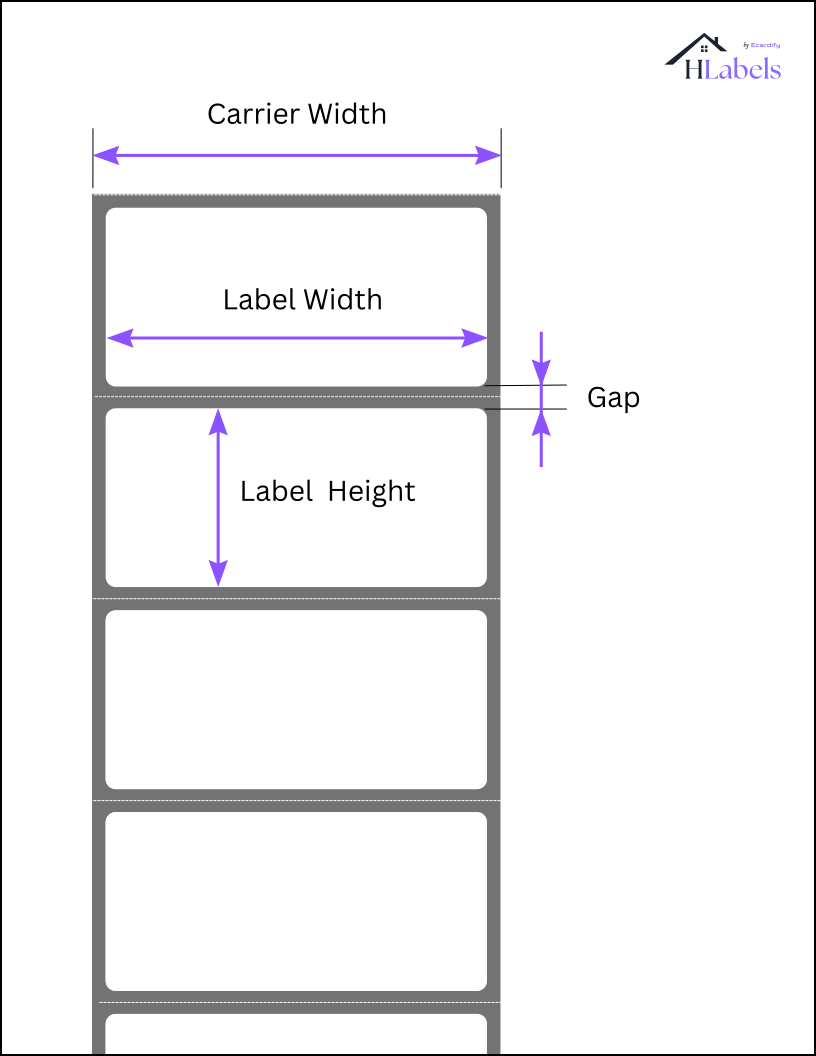
Roll label measurements indicating width, height, and spacing in inches.
Google Docs logo  Print in Google Docs & Sheets

How to enter Roll Label Dimensions

If you already have your label design file(s) saved on your computer, you can upload them here, enter the dimensions of your roll labels, adjust any print layout settings to suit your needs, and we'll instantly generate a PDF printout formatted for precise printing on your roll labels — no matter which roll label printer you're using.

Find more info about each setting below.

  • Unit of Measurement
    Label roll dimensions are defined in either inches or millimeters. Select the unit that matches the measurements of your label roll.
  • Label Width
    The width of a single label. If necessary, the system will reduce the size of the design image (both width and height) to ensure it fits within this width. However, the system will never enlarge your image to the point where its resolution is reduced, as this could lead to pixelation or blurry printouts. Make sure your image file has sufficient resolution for your label size. For example, a 200×200 pixel image does not have enough resolution to fill a 4×4 inch label. At typical print resolutions, it would appear much smaller - around 1.3 inches square - and be centered on the label.
  • Label Height
    The height of a single label. The same image quality considerations mentioned for label width also apply to label height.
    In addition, the width-to-height ratio of the label should closely match that of the design image; otherwise, empty space may appear around the printed labels. For this reason, based on the label width (which you should enter first), the system automatically fills in a label height value. However, you must enter the exact width of your labels instead.
  • Carrier Width
    The specifications of the roll should include the width of the carrier of labels, which is usually slightly larger than the width of the label, to allow for margin space on both sides. If it is not specified, measure it carefully yourself and enter the value here.
  • Gap
    Labels on a roll are usually spaced slightly apart from each other. The specifications of your label roll should list this as the Gap dimension. If it is not specified, measure it carefully yourself and enter the value here.
  • Orientation
    If you want your label images to be inserted vertically (i.e., rotated -90 degrees) into each label, there's no need to rotate them manually before uploading. Simply set this field to "Landscape", and the system will automatically rotate the images and generate the printout file accordingly.
  • Bleed area
    When your label background isn't white, slight misalignments during printing can cause a thin white edge to appear along one or more sides. A simple and effective way to avoid this is to print the label image slightly larger than the label area, so the background extends beyond the label's actual edge. This method is called applying a bleed.
    If you notice white edges, select a bleed area between 1% and 5%, depending on how much coverage you need.
  • Quantity
    The number of labels you want to print.

Note that the same dimensions and settings are also available when printing custom roll label templates through Hlabels integrations with Canva, Adobe Express, Google Docs, and Google Sheets.
Return to Roll Dimension Entry ↩

Looking for Standard Roll Labels?

This service can be used to print on any standard Direct Thermal, Thermal Transfer and Inkjet roll labels from any manufacturer worldwide, and on any roll label printer — whether Zebra, Dymo, Rollo, Afinia, Epson, Brother or any other brand.
For your convenience, and on a request basis, we will begin adding dedicated pages for roll label products from various label manufacturers worldwide. Contact us with your request.

Please note that we only facilitate DIY label printing — we do not sell labels or label printers.
Partnered services

Canva logo

Canva App

Without leaving Canva, this App generates any label sheet from your Canva label design.

Adobe logo

Adobe Add-on

From within Adobe Express, this Add-on generates any label sheet from your Adobe label design.

Google logo

Docs™ and Sheets™

Install this Add-on to create, mail merge, and print labels from Google Docs and Sheets.

Chrome logo

Chrome Extension

Install our extension to print labels, QR code of web pages, and images from the web.

×

Your cookie choices

We respect your privacy and want you to have control over your data. Please choose your preferences: